A chore chart app with rewards, right on the wall
We’ve tried every chore chart. The magnetic one lost its magnets. The sticker one ran out of stickers. The app on my phone worked great, for me, because the kids never saw it.
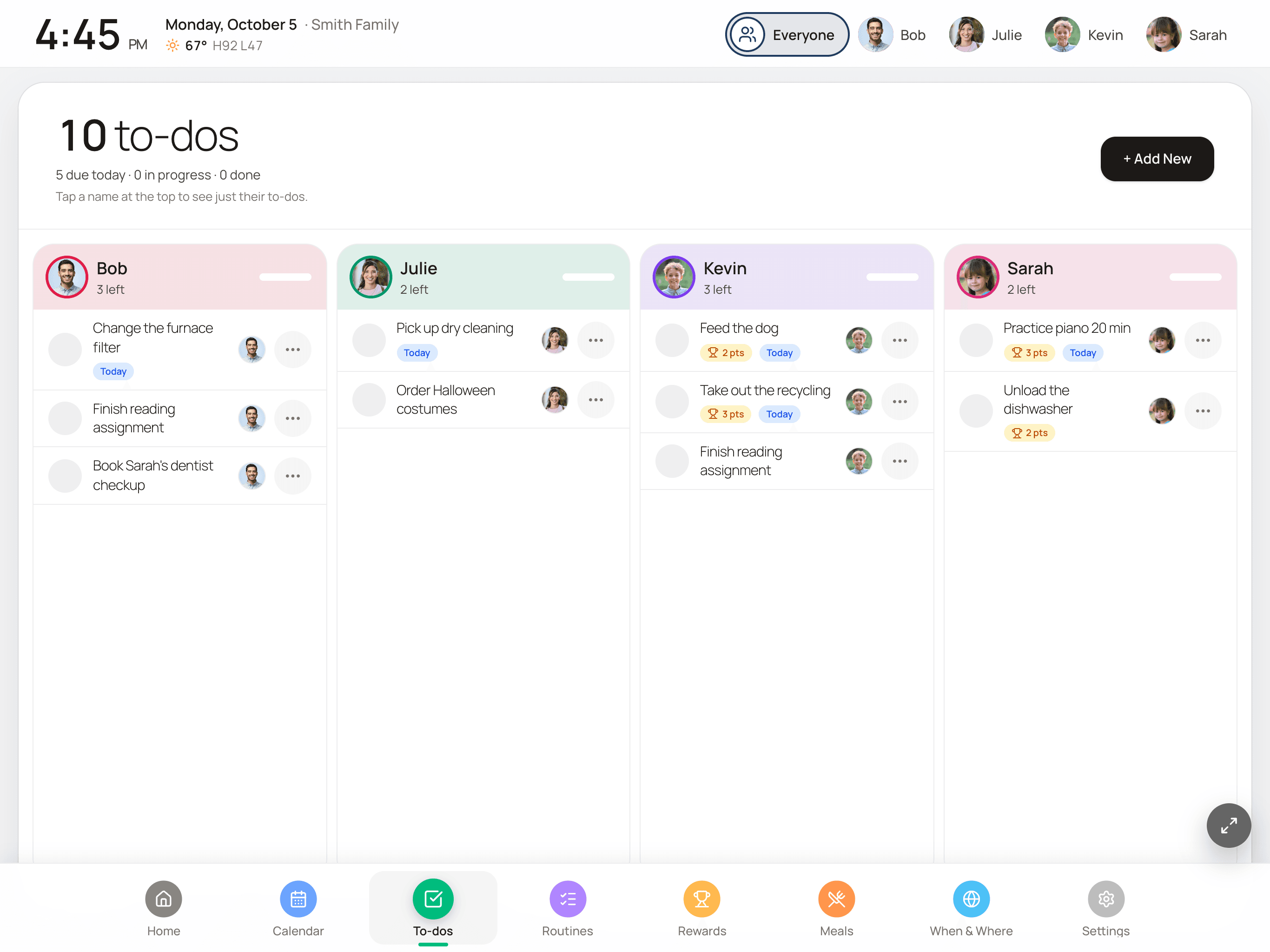
What finally stuck in our house was putting the chores on a screen in the kitchen. Each kid sees their own list, taps a chore when it’s done, watches their points go up, and asks for a reward right there on the wall. I approve it from my phone. That’s FamDisplay’s chore chart, and here’s exactly how it works.
14 days free, no credit card. Then Basic $4.99/mo or Pro $9.99/mo.
Why a chore chart on the wall works better
A chore app on a parent’s phone turns you into the reminder service. A chart on the wall does the reminding for you. The list is there when they walk in from school, and it stays there until someone taps it done, so nobody has to be told twice.
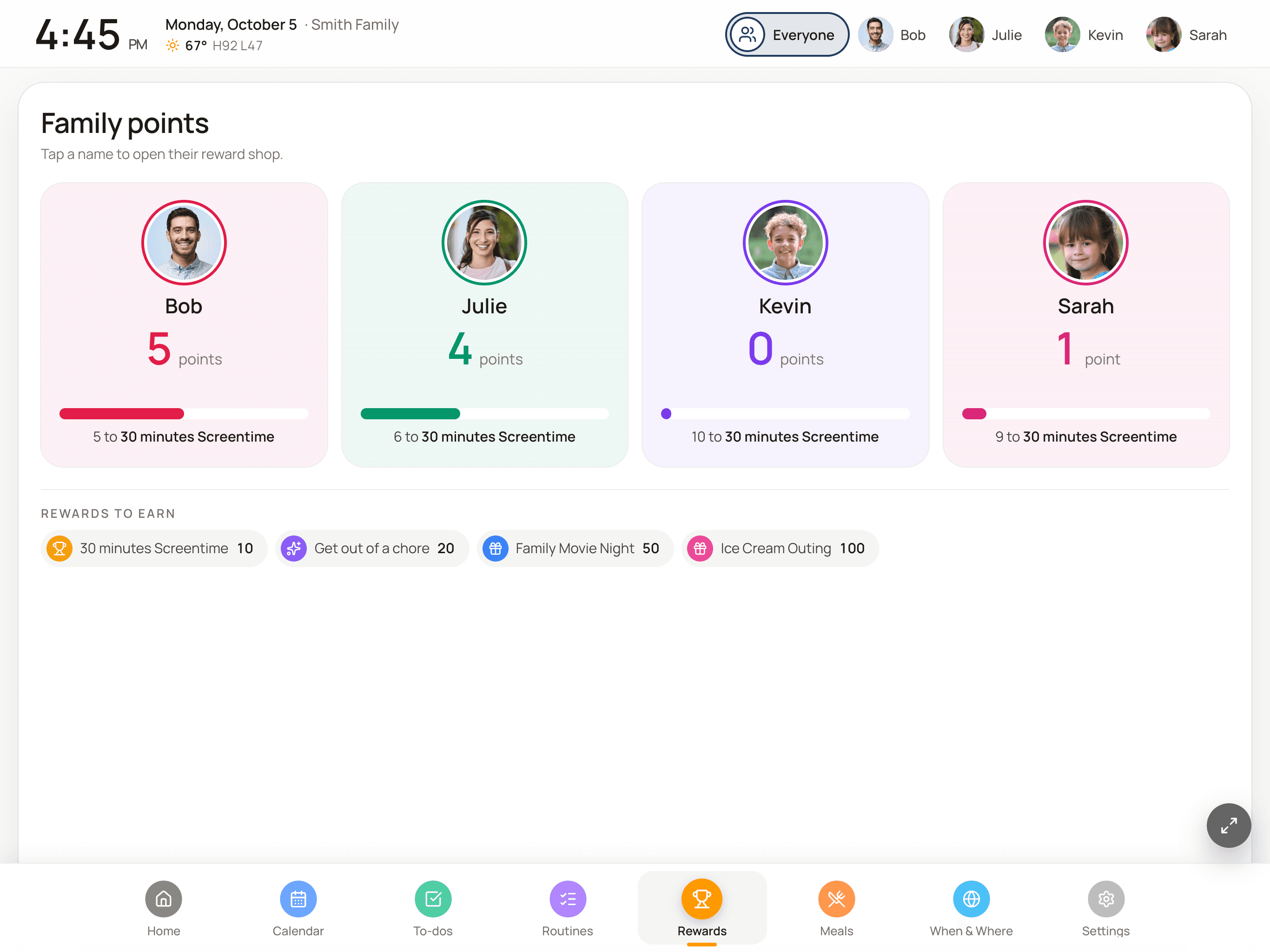
Kids also like seeing the score. When points go up the moment a chore is checked off, and the reward they want is right there on the same screen, the connection between doing the work and getting the thing is obvious, even to a six-year-old.
How chores work
Chores in FamDisplay are to-dos you add from your phone (or right on the wall). Each one can have:
- One or more people it’s assigned to, so it lands in the right kid’s column.
- A due date, so today’s chores are marked as due today.
- A repeat: daily, weekdays, weekly or monthly. When a repeating chore is checked off, it moves to its next day instead of disappearing.
- A point value. The points go to whoever checked it off, once per chore per day. If someone unchecks it, the points come back off, so tapping a chore on and off doesn’t farm points.
How rewards work (and why you stay in charge)
You decide what points buy. Add rewards with a point cost: 30 minutes of screen time, getting out of a chore, a family movie night, an ice cream trip. Whatever motivates your kids and fits your family.
On the wall, a kid opens the Rewards tab, taps their name to open their reward shop, and requests something they can afford. The request shows as pending, and those points are held so the same balance can’t be spent twice while they wait.
You see the request on the Rewards card in your FamDisplay setup on your phone. Approve it and the points are spent. Say not now and they keep their points. Nothing is redeemed without a parent saying yes, which keeps the system honest and saves a lot of negotiating.
Tips for setting up points
After a lot of trial and error with four kids, here’s what I’d tell a friend:
- Start small. Three or four chores per kid is plenty for the first week. You can always add more.
- Price the first reward so it’s reachable in a few days. Early wins build the habit; a reward that takes a month to earn gets ignored.
- Make harder chores worth more. Unloading the dishwasher should earn more than putting shoes away.
- Keep big rewards on the list too, so older kids have something to save for.
- Use repeats for the daily stuff, so you set it up once and never type “feed the dog” again.
Routines earn points too
Chores are the one-off and weekly jobs. For the things kids do every day in the same order, like getting ready for school or bedtime, FamDisplay has routines. Each routine step can be worth points, and they go into the same balance. See our kids routine chart guide for how those work.
To-dos, routines and rewards are part of the Pro plan ($9.99/mo), and all of it is included in the 14-day free trial.
How to set up a chore chart with rewards
About fifteen minutes from sign-up to the first chore on the wall.
Add your family
Start the free trial, then add each kid (and grown-up) who’ll have chores. Each person gets their own color and column.
Create a few rewards
On the Rewards card in setup, add rewards with a point cost, like 10 points for 30 minutes of screen time or 50 for a family movie night.
Add chores with points
Add to-dos, assign each one to a kid, give it a point value, and set daily, weekday, weekly or monthly repeats for the regular jobs.
Put the chart where kids will see it
Open FamDisplay on a tablet or screen in the kitchen or hallway, at a height the kids can reach to tap.
Approve reward requests from your phone
When a kid requests a reward on the wall, approve it or say not now on the Rewards card in your setup. Points are only spent when you approve.
Common questions
How do kids earn points?
By checking off to-dos that have a point value and by completing routine steps that carry points. Points go to whoever checked the item off, once per chore per day, and come back off if it’s unchecked.
Can kids redeem rewards without asking me?
No. Kids can request a reward on the wall, but it stays pending until a parent approves it in the FamDisplay setup. Points are held while it waits and only spent on approval.
Can chores repeat automatically?
Yes. A chore can repeat daily, on weekdays, weekly or monthly. When it’s checked off, it moves to its next due day.
What devices can I use for the chore chart?
Any tablet or screen that can open a web page, plus our iPad app. Most families use an iPad or a Fire tablet mounted at kid height so they can tap chores done.
Is the chore chart included in every plan?
To-dos, routines and rewards are part of Pro ($9.99/mo). Basic ($4.99/mo) covers the shared calendar. The 14-day free trial includes everything in Pro, no credit card needed.
Keep reading
Morning and bedtime routines kids tap through, with points.
Set up a spare iPad as the family screen.
An inexpensive tablet for the chore chart.
Put the week on the big screen.
How our chores and rewards compare with Skylight.
Make chores something they can see
Add your kids, a few chores and a reward worth working for. Every Pro feature is free for 14 days.
No credit card needed to start.