Turn an iPad into a family wall calendar
That iPad in the kitchen drawer, the one that’s too slow for games and too old for anyone to fight over, is a really good family calendar. It has a bright screen, it’s built for little fingers, and it already belongs to you.
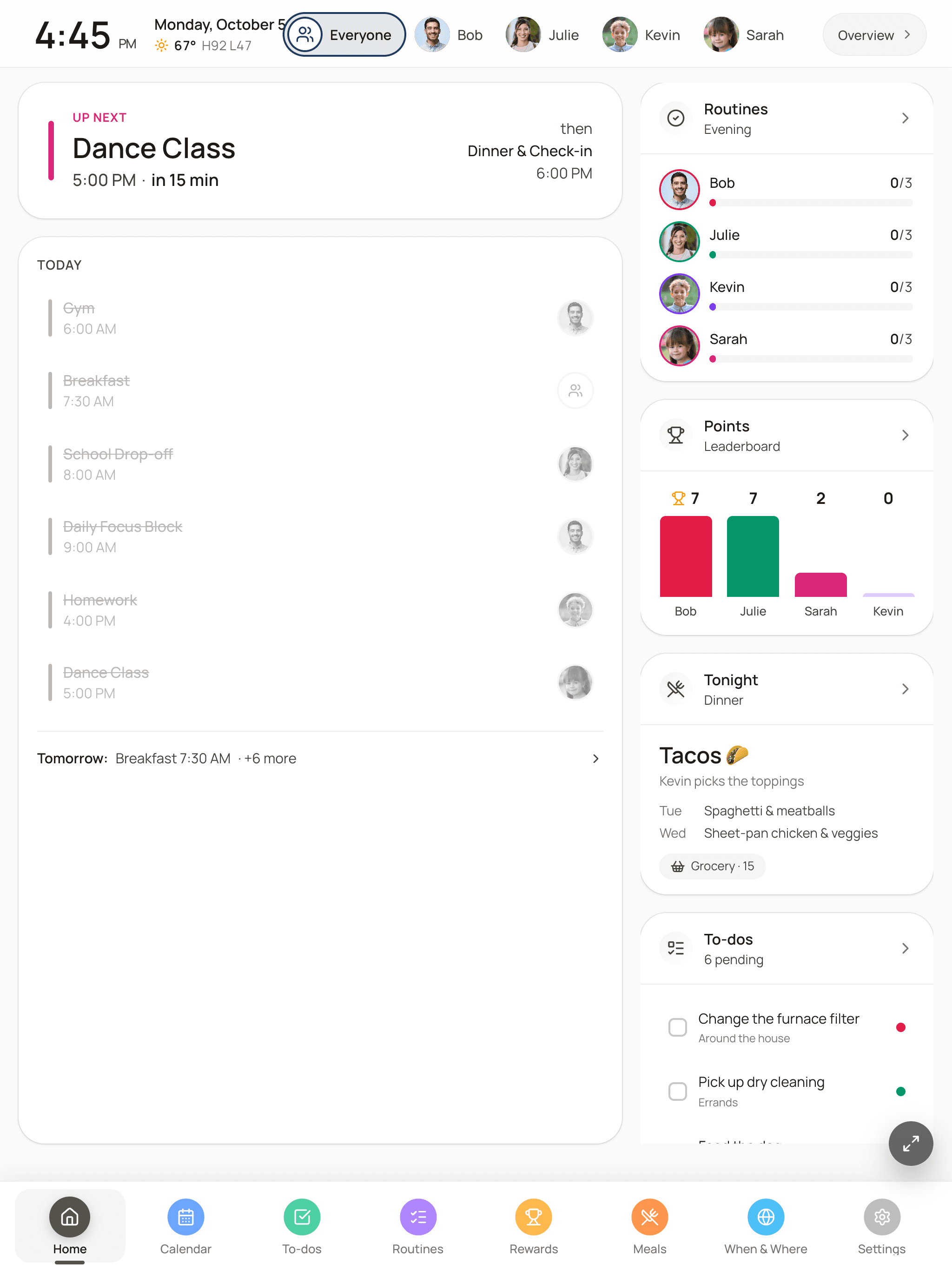
FamDisplay is how I turned ours into the screen my four kids check every morning. It pulls everyone’s calendars onto one screen, color-codes each person, and adds the stuff a phone calendar never shows a seven-year-old: today’s routine, their chores, and how close they are to their next reward.
14 days free, no credit card. Then Basic $4.99/mo or Pro $9.99/mo.
Why an old iPad makes a great family calendar
A wall calendar only works if everyone sees it without trying. A phone calendar fails that test: it’s in a pocket, it’s locked, and the kids don’t have it. A screen on the kitchen wall passes it every time someone walks by for a snack.
An iPad is a good fit for that job. The screen is big enough to read from across a room, the touchscreen means kids can check things off themselves, and older models that can’t keep up with new apps are fine at showing a calendar all day. You skip buying a dedicated calendar gadget, and if you ever want a bigger screen later, your account moves with you.
What shows up on the wall
Once it’s set up, the iPad becomes a shared screen for the whole house. You manage everything from your phone, and the wall updates on its own.
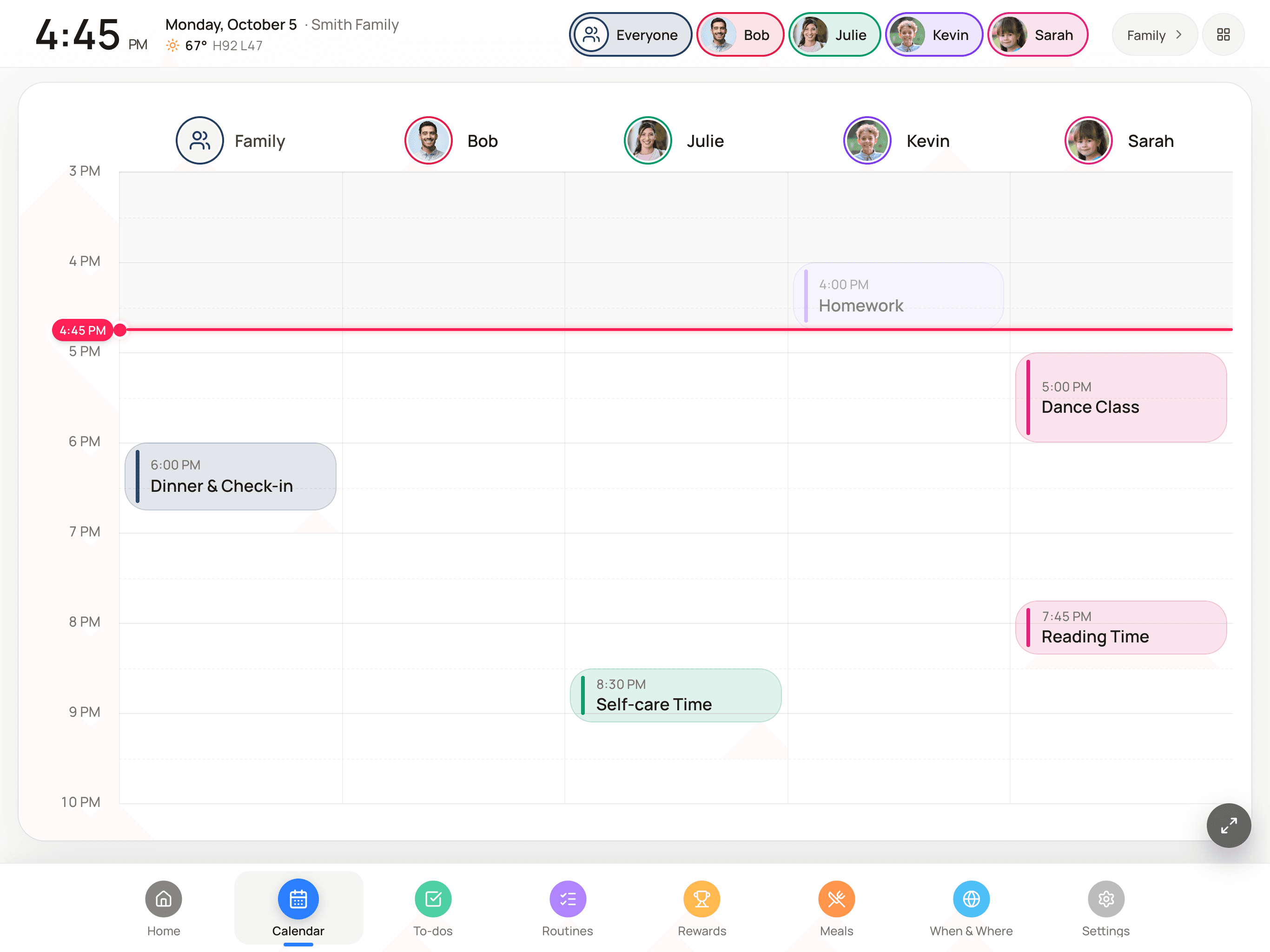
- Everyone’s calendars in one view, each person in their own color. Google Calendar connects directly; iCloud, Outlook, school and sports calendars connect with their calendar (ICS) link.
- Today, family columns and week layouts, plus the weather and countdowns to birthdays and trips.
- Morning, after-school and bedtime routines kids tap through themselves. More on that in our kids routine chart guide.
- To-dos and chores that earn points toward rewards you pick. See the chore chart with rewards.
- Tonight’s dinner on the Home screen and a shared grocery list everyone can add to.
The app or the browser: two ways to run it
The easiest way is the FamDisplay iPad app from the App Store. It shows a short pairing code, you type that code into your phone, and the iPad opens your family’s screen full-screen. It reconnects on its own when the Wi-Fi blinks, so nobody has to walk over and press reload.
You can also skip the app and open your display link in Safari. You’ll find it on the “Put it on a screen” card in your setup, with a QR code you can scan with the iPad’s camera. That link works on an iPad, a laptop or anything else with a modern browser. If an older iPad can’t install the app, the browser is the way to go.
Keeping the screen on all day
Two built-in iPad settings do most of the work. Auto-Lock (Settings › Display & Brightness › Auto-Lock › Never) stops the screen from going dark. Guided Access (Settings › Accessibility › Guided Access) keeps the iPad locked to one app, so a curious three-year-old can’t swipe over to YouTube. Turn it on, open FamDisplay, then triple-click the side or Home button to start it. Set a passcode you’ll remember, because you need it to get back out.
Inside FamDisplay, night mode dims the screen during the hours you choose, so the kitchen isn’t lit up at midnight. You can also set a Setup PIN so little fingers can’t wander into the settings.
Mounting and power tips
Put it where the family already stops: next to the fridge, by the door to the garage, or at the end of the counter. Eye level for the shortest kid who uses it is a good rule. A wall plate or adhesive iPad mount works, and a 90-degree charging cable keeps the cord tidy. A counter stand is fine too if you rent or don’t want holes in the wall.
An iPad on the wall stays plugged in, so give an old one a quick look first. If the screen is lifting away from the case, the battery may be swollen, and that iPad should be retired, not mounted.
How to set up an iPad as your family calendar
Plan on about ten minutes, most of it connecting calendars.
Start your free trial on your phone
Sign up at famdisplay.com (14 days free, no credit card), add each family member, and connect your calendars: Google directly, or iCloud, Outlook and school calendars with their ICS link.
Install the FamDisplay app on the iPad
Download FamDisplay from the App Store on the iPad you want to use and open it. It shows a six-character pairing code. If the iPad can’t install the app, scan the QR code on the “Put it on a screen” card in your setup to open your display link in Safari instead.
Pair it with the code
On your phone, go to famdisplay.com/link, sign in, and type the code. The iPad switches to your family’s screen within a few seconds. Codes expire after 15 minutes; the app shows a fresh one automatically.
Set Auto-Lock to Never
On the iPad, open Settings › Display & Brightness › Auto-Lock and choose Never so the screen stays on.
Turn on Guided Access
In Settings › Accessibility › Guided Access, switch it on and set a passcode. Open FamDisplay and triple-click the side or Home button to lock the iPad to the app.
Mount it and plug it in
Put the iPad where everyone walks past, on a wall mount or counter stand, and keep it on its charger. Turn on night mode in FamDisplay so it dims overnight.
Common questions
Which iPads work as a family wall calendar?
If your iPad can install the FamDisplay app from the App Store, use that. If it can’t, open your display link in Safari instead. The best way to know is to try it during the 14-day free trial. Bigger screens are easier to read from across a room.
Do I need the app, or can I just use Safari?
Either works. The app pairs with a code, runs full-screen and reconnects on its own after Wi-Fi drops, so it’s the better choice for a screen on the wall. Safari is handy for older iPads or for checking the display from anywhere.
How do I keep the iPad screen from turning off?
Set Settings › Display & Brightness › Auto-Lock to Never and keep the iPad plugged in. Turn on Guided Access so it stays in FamDisplay, and use FamDisplay’s night mode to dim the screen overnight.
Can I update the calendar from my phone?
Yes. Events you add in Google Calendar, Apple Calendar or Outlook show up on the wall once they sync. Routines, to-dos, rewards and meals are managed from FamDisplay on your phone, and the iPad updates by itself.
Which plan do I need?
Basic ($4.99/mo) covers the shared calendar for up to four people. Pro ($9.99/mo) adds unlimited family members, all layouts, routines, to-dos, rewards, and meals with the grocery list. The 14-day trial includes everything in Pro.
Can I put FamDisplay on more than one iPad?
Yes. Pair a second iPad with its own code, or open the display link on another screen. Many families keep one in the kitchen and check the same schedule from their phones.
Keep reading
Have an Amazon Fire tablet instead? Here’s how to run FamDisplay on it.
The ways that actually work to put your family schedule on the big screen.
Morning and bedtime checklists kids tap through on the wall.
Chores that earn points, and rewards you approve from your phone.
How using your own iPad compares with buying a dedicated calendar screen.
Give that old iPad a new job
Set up your family, connect your calendars, and pair the iPad in a few minutes. Try every Pro feature free for 14 days.
No credit card needed to start.