How to show your family calendar on a TV
A TV is the biggest screen in most houses, and in a lot of homes it’s the one in the kitchen or the room everyone passes on the way out the door. Putting the family calendar on it means nobody has to squint.
FamDisplay gives your family a display link: a web page with everyone’s calendars, the weather, countdowns, and today’s routines and chores. Anything that can open a web page on the TV can show it. Here are the ways that work, from simplest to most reliable, and the honest trade-offs of each.
14 days free, no credit card. Then Basic $4.99/mo or Pro $9.99/mo.
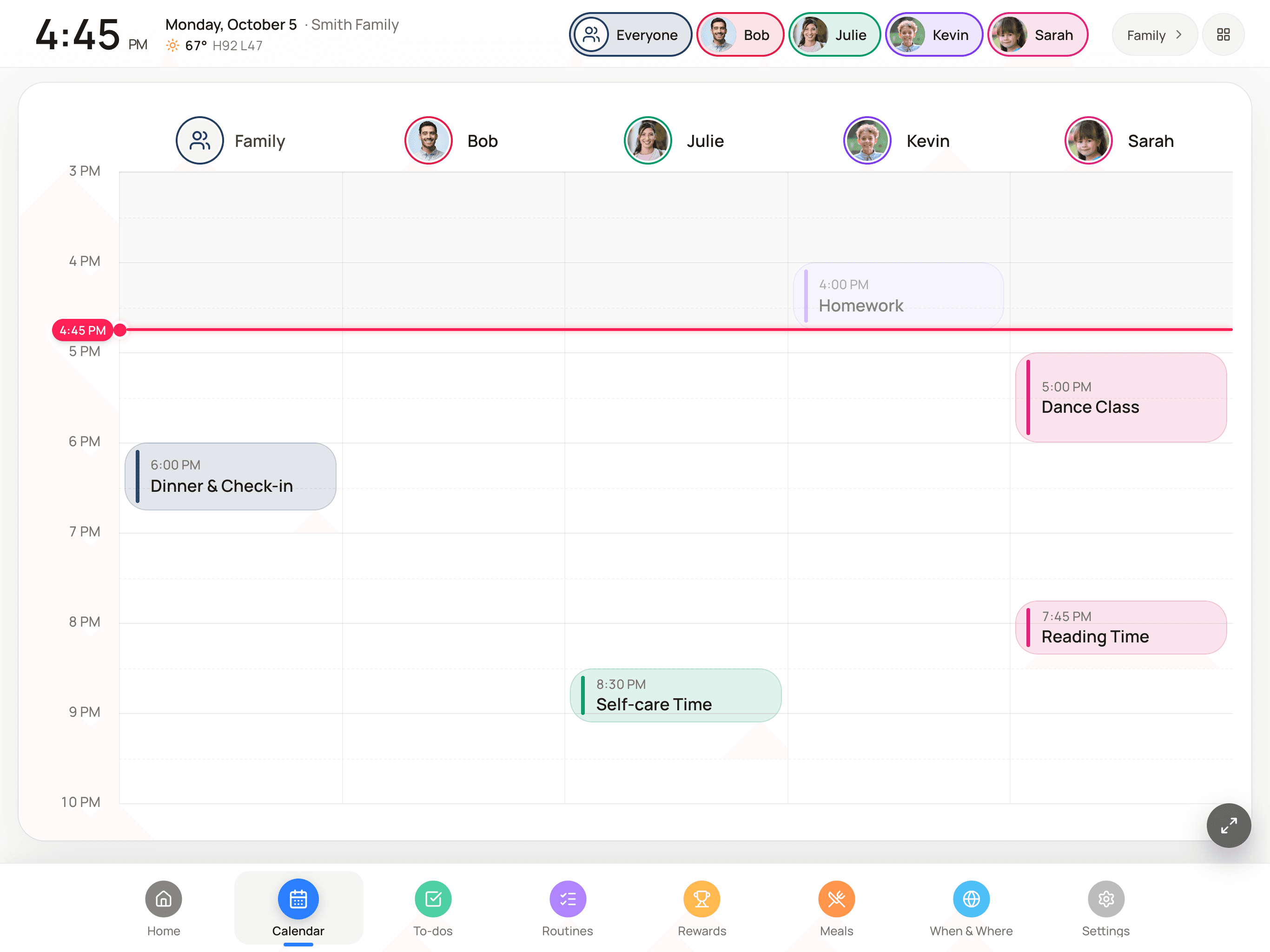
Option 1: the TV’s own web browser
Most smart TVs have a web browser built in. Open it, type your display link (it’s on the “Put it on a screen” card in your FamDisplay setup), and leave it open. The page updates by itself when calendars change, so you don’t have to touch it again.
This is the cheapest option, since you already own everything. The downside is that TV browsers vary a lot. Some are slow, some go back to the home screen after a while, and typing a web address with a remote is nobody’s favorite job. Bookmark the page the first time so it’s one click next time.
Option 2: a Fire TV stick or other streaming stick
If your TV’s browser is slow or missing, a streaming stick usually has a better one. On a Fire TV, install a web browser from its app store (Amazon’s Silk browser is the usual pick), open your display link and bookmark it. The same idea works on other streaming boxes that offer a web browser.
FamDisplay doesn’t have its own Fire TV, Apple TV or smart TV app. On these devices you’re using the browser, which is why the display link matters.
Option 3: mirror an iPad or cast a browser tab
If you have an Apple TV or an AirPlay-compatible TV, you can mirror an iPad that’s running FamDisplay: open Control Center on the iPad, tap Screen Mirroring and pick the TV. Set up the iPad first using our iPad family calendar guide.
With a Chromecast or Google TV, open your display link in Chrome on a computer, open Chrome’s menu, choose Cast, and cast the tab to the TV.
Mirroring is great for a family meeting on Sunday night, when you want to look at the week together. For all day, every day, it’s fragile: the iPad or computer has to stay on and awake, and the TV shows black bars because the shapes don’t match.
Option 4: a laptop or mini PC on HDMI
The most reliable way to keep a calendar on a TV all day is an old laptop or a small PC plugged into the TV’s HDMI port. Open your display link in Chrome, Edge or Firefox and switch the browser to full screen (F11 on most Windows laptops). Turn off the computer’s sleep setting while it’s plugged in.
It’s more hardware than a streaming stick, but a real computer browser is fast and doesn’t wander back to a home screen.
Before you leave it on all day
A few TV settings and FamDisplay settings make a big difference:
- Check the TV’s auto power-off or eco setting. Many TVs turn themselves off after a few hours with no remote button presses.
- Turn on FamDisplay’s night mode so the screen dims during the hours you pick.
- FamDisplay shifts the always-on header (clock, family name, avatars) by a few pixels every hour to help against burn-in. If you have an OLED TV, still follow your TV maker’s advice about static images.
- If the Wi-Fi blinks, the display keeps retrying on its own instead of getting stuck on an error.
TV, tablet, or both?
A TV is great for reading the day at a glance. It isn’t great for anything you tap. Kids can’t check off their morning routine or their chores on a TV. That’s why a lot of families use the TV for the calendar and put a tablet at kid height for routines, to-dos and rewards. The same family shows on both, and parents manage it all from their phones.
If you don’t have a spare tablet, a Fire tablet is an inexpensive way to add one.
How to put your family calendar on a TV
Using the TV’s browser or a streaming stick. Plan on about ten minutes.
Set up your family on your phone
Start the 14-day FamDisplay free trial, add your family members and connect your calendars: Google directly, or iCloud, Outlook and school calendars with their ICS link.
Copy your display link
In your FamDisplay setup, find the “Put it on a screen” card. It shows your display link. Anyone with that link can view your display, and you can reset it there.
Open the link in the TV’s browser
Open the web browser on your smart TV or streaming stick, type in the display link, and bookmark it.
Stop the TV from turning itself off
In the TV’s settings, turn off auto power-off or the eco timer so the screen stays on.
Turn on night mode
In FamDisplay’s display settings, turn on night mode so the screen dims overnight.
Common questions
Is there a FamDisplay app for smart TVs, Apple TV or Fire TV?
No. On a TV, FamDisplay runs in a web browser: the TV’s own browser, a browser on a Fire TV or other streaming stick, or a computer connected with HDMI. You can also mirror an iPad running FamDisplay to an Apple TV.
Can I show Google Calendar on my TV this way?
Yes. Connect Google Calendar to FamDisplay and it shows on the display link along with any iCloud, Outlook or ICS calendars, each family member in their own color.
Will the calendar update on the TV by itself?
Yes. The display refreshes on its own when calendars and settings change, and it keeps retrying if the internet drops, so you don’t need to touch the TV after setup.
Can kids check off chores on the TV?
Not with a remote, realistically. Use the TV for the calendar and a tablet within reach for routines, to-dos and rewards. Both show the same family.
Will leaving the calendar on damage my TV?
FamDisplay nudges its always-on header a few pixels each hour and has a night mode that dims the screen. On OLED TVs, also follow the manufacturer’s guidance for static images, and consider letting the TV sleep overnight.
Keep reading
Turn a spare iPad into a wall calendar kids can tap.
An inexpensive tablet for the kitchen wall.
Morning and bedtime checklists on a screen.
Chores that earn points toward rewards.
Using screens you own versus buying a calendar frame.
Put the whole week on the big screen
Connect your calendars, copy your display link, and open it on the TV. Try everything free for 14 days.
No credit card needed to start.