Use an Amazon Fire tablet as a family wall calendar
Fire tablets are cheap, they go on sale constantly, and a lot of families have one the kids outgrew. That makes them a tempting screen for the kitchen wall. The catch is that the built-in Alexa and Amazon apps aren’t made to be a family calendar.
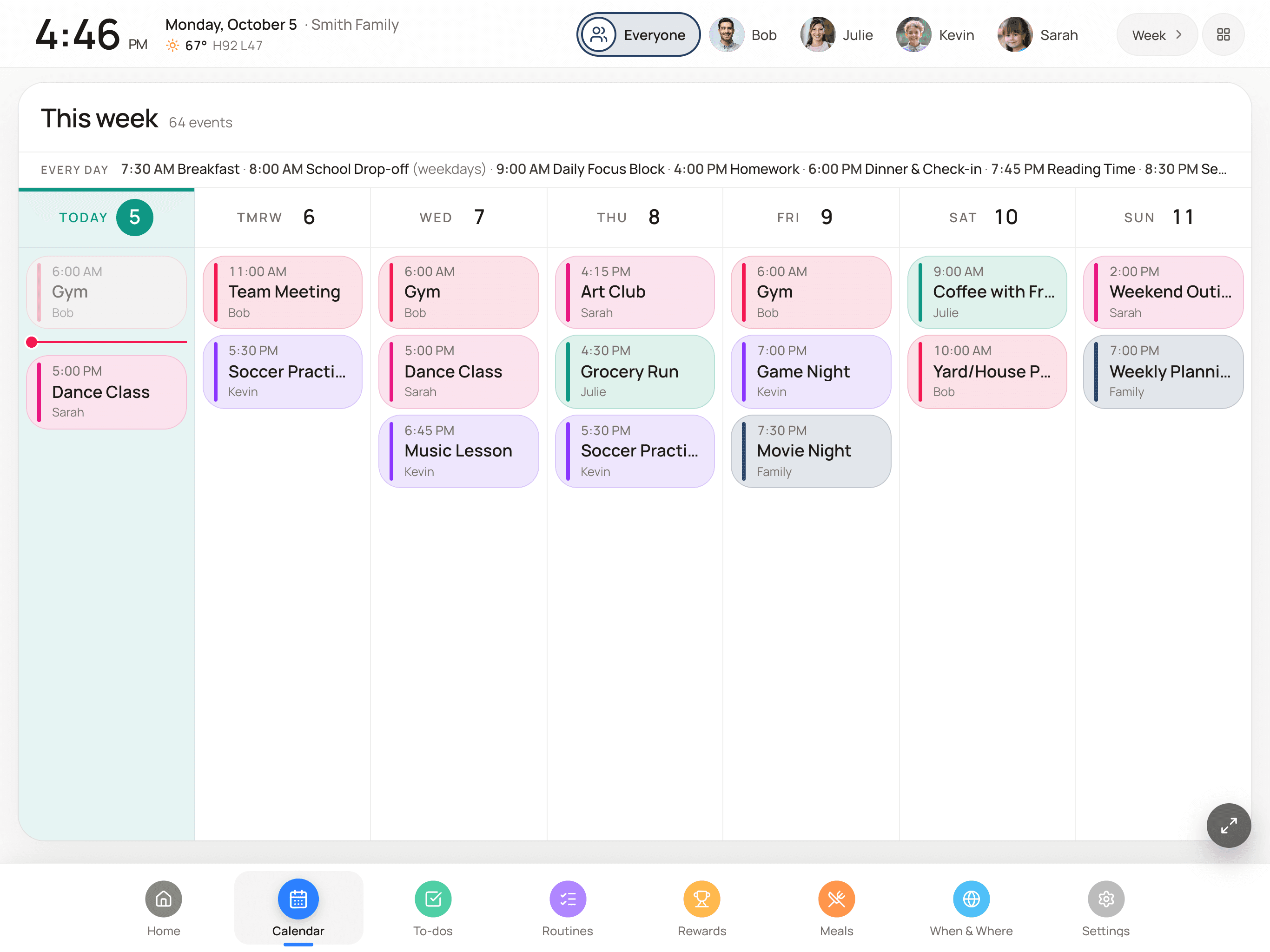
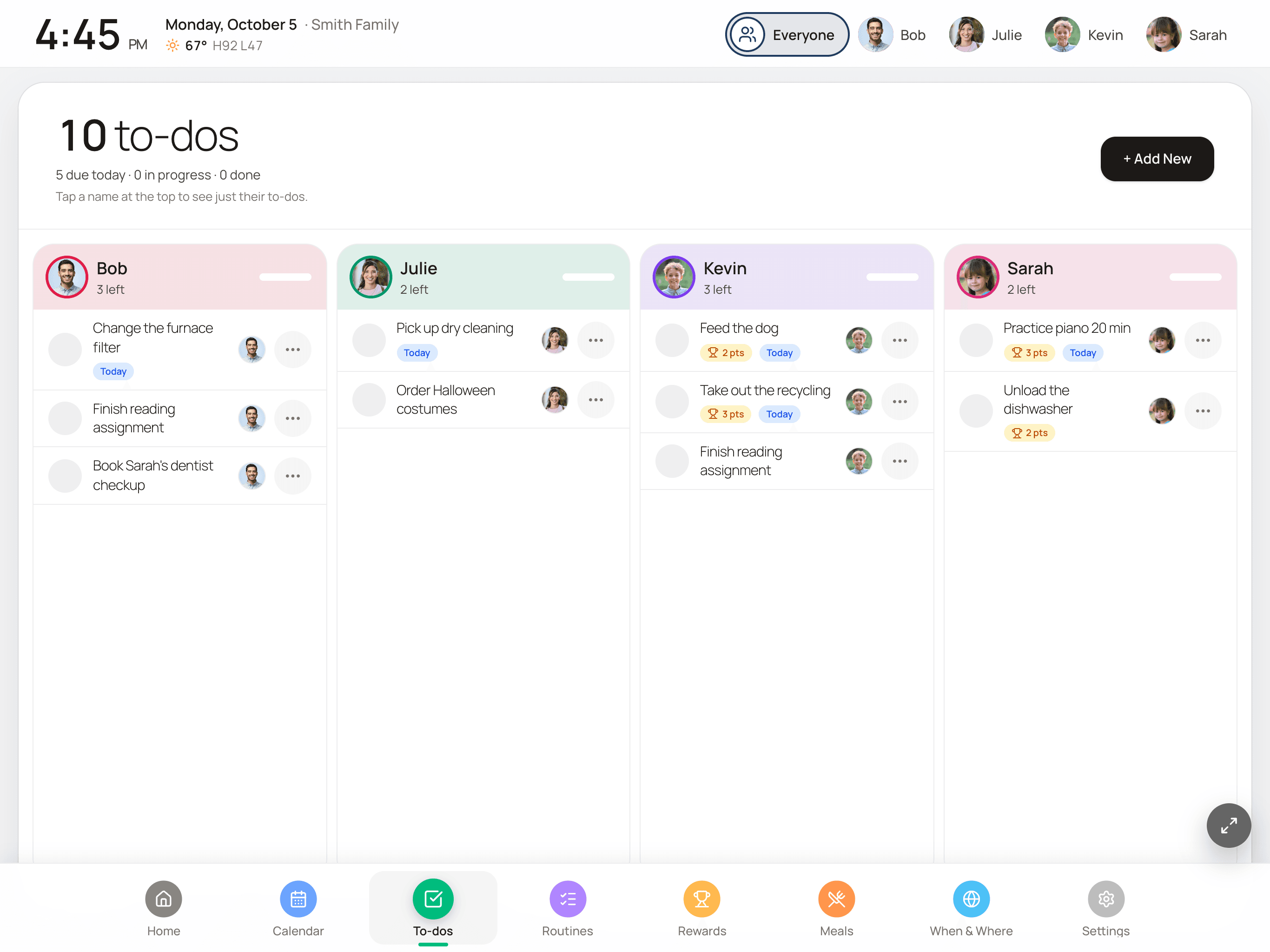
FamDisplay runs in the Fire tablet’s Silk browser. Open your family’s display link, and the tablet shows everyone’s calendars in their own colors, plus routines, chores, rewards and tonight’s dinner. Here’s how to set it up and keep it on.
14 days free, no credit card. Then Basic $4.99/mo or Pro $9.99/mo.
How it works on a Fire tablet
Every FamDisplay family gets a display link: a web address for your family’s screen. Silk, the browser that comes on every Fire tablet, opens it like any other page. There’s nothing to sideload and no special app to hunt for.
You set things up from your phone (people, calendars, routines, chores) and the tablet just shows them. When something changes, the wall picks it up by itself. If the Wi-Fi drops, the display keeps trying to reconnect instead of sitting on an error, which matters when nobody’s standing at the wall to press reload.
We’re also working on a dedicated app for Android and Fire tablets that pairs with a code and stays full-screen, the way our iPad app does. Until it’s available for your Fire tablet, the browser is how you run FamDisplay on it, and it works today.
What your family sees
The point of a wall calendar is that nobody has to ask what’s happening today. Here’s what goes on the screen:
- Google Calendar connected directly, and iCloud, Outlook, school and sports calendars through their ICS link, each person in their own color.
- Weather, the date and time, and countdowns to the things the kids keep asking about.
- Routines and to-dos kids check off with a tap, with points toward rewards. See the chore chart app page for how rewards work.
- This week’s dinners and a shared grocery list the whole household can add to.
Keeping a Fire tablet awake
Out of the box, a Fire tablet turns its screen off after a few minutes. Start with Settings › Display › Screen Timeout and pick the longest option.
For a screen that stays on around the clock, use Stay awake, which keeps the screen on while the tablet is charging. It lives in Developer Options, which Fire tablets hide by default. Go to Settings › Device Options › About Fire Tablet and tap Serial Number seven times. A new Developer Options entry shows up under Device Options; open it and turn on Stay awake. Because a wall tablet is always plugged in, the screen stays on, and you never land on the lock screen.
Then turn on night mode in FamDisplay’s settings so the screen dims during the hours you choose. If your Fire HD has Show Mode (the hands-free Alexa screen), leave it off while FamDisplay is up, since it takes over the whole display.
Fire tablet tips from our house
A few things save headaches once the tablet is on the wall:
- Use a grown-up profile. Amazon Kids profiles limit the web browser, so set the wall tablet to a parent profile and lock the settings with a Setup PIN in FamDisplay.
- Bigger is easier. A 10-inch Fire HD is much easier to read from across the kitchen than a 7- or 8-inch model.
- Try it before you mount it. Older Fire tablets have slower browsers. Run FamDisplay for a few days during the free trial and make sure it feels quick enough before you drill any holes.
- Plan the cord. A wall tablet lives on its charger, so mount it near an outlet or run the cable along the trim.
How to set up a Fire tablet as your family calendar
You’ll need your phone, the Fire tablet and about ten minutes.
Create your FamDisplay account
On your phone, start the 14-day free trial (no credit card), add your family members and connect your calendars.
Open your display link in Silk
In your FamDisplay setup, find the “Put it on a screen” card and note the display link. On the Fire tablet, open the Silk browser and type that link in. Anyone with the link can view your display, and you can reset it from the same card.
Bookmark it
Bookmark the page in Silk so it’s one tap to get back to after a restart.
Keep the screen on
Set Settings › Display › Screen Timeout to the longest option. For always-on, unlock Developer Options by tapping Serial Number seven times under Settings › Device Options › About Fire Tablet, then turn on Stay awake.
Mount it and plug it in
Put the tablet where the family walks by, keep it charging, and turn on FamDisplay’s night mode so it dims overnight.
Common questions
Is there a FamDisplay app for Fire tablets?
Not in the Amazon Appstore yet. FamDisplay runs in the Silk browser that comes on every Fire tablet: open your display link and bookmark it. We’re working on a dedicated app for Android and Fire tablets.
Which Fire tablet is best for a family calendar?
A 10-inch Fire HD is the easiest to read from across a room. Smaller and older models can work too, but their browsers are slower, so try yours during the free trial before you mount it.
How do I stop my Fire tablet screen from turning off?
Set Screen Timeout to the longest option in Settings › Display. For always-on while charging, enable Developer Options (tap Serial Number seven times in Settings › Device Options › About Fire Tablet) and turn on Stay awake.
Can my kids use FamDisplay on a Fire tablet with an Amazon Kids profile?
Amazon Kids profiles restrict the web browser, so use a parent profile on the wall tablet. Kids can still tap through routines and to-dos on the screen, and a Setup PIN keeps them out of the settings.
Does it work with Alexa?
No. FamDisplay doesn’t connect to Alexa. It shows your Google, iCloud, Outlook and ICS calendars, plus routines, chores, rewards and meals, on the tablet’s screen.
Keep reading
Using an iPad instead? Pair our iPad app with a code.
Fire TV, smart TVs and screen mirroring: what works on the big screen.
Morning, after-school and bedtime checklists on the wall.
Chores that earn points, and rewards you approve.
A tablet you own versus a dedicated calendar screen.
Put your Fire tablet to work
Set up your family from your phone, open the link on the tablet, and see if it sticks. Every Pro feature is free for 14 days.
No credit card needed to start.